
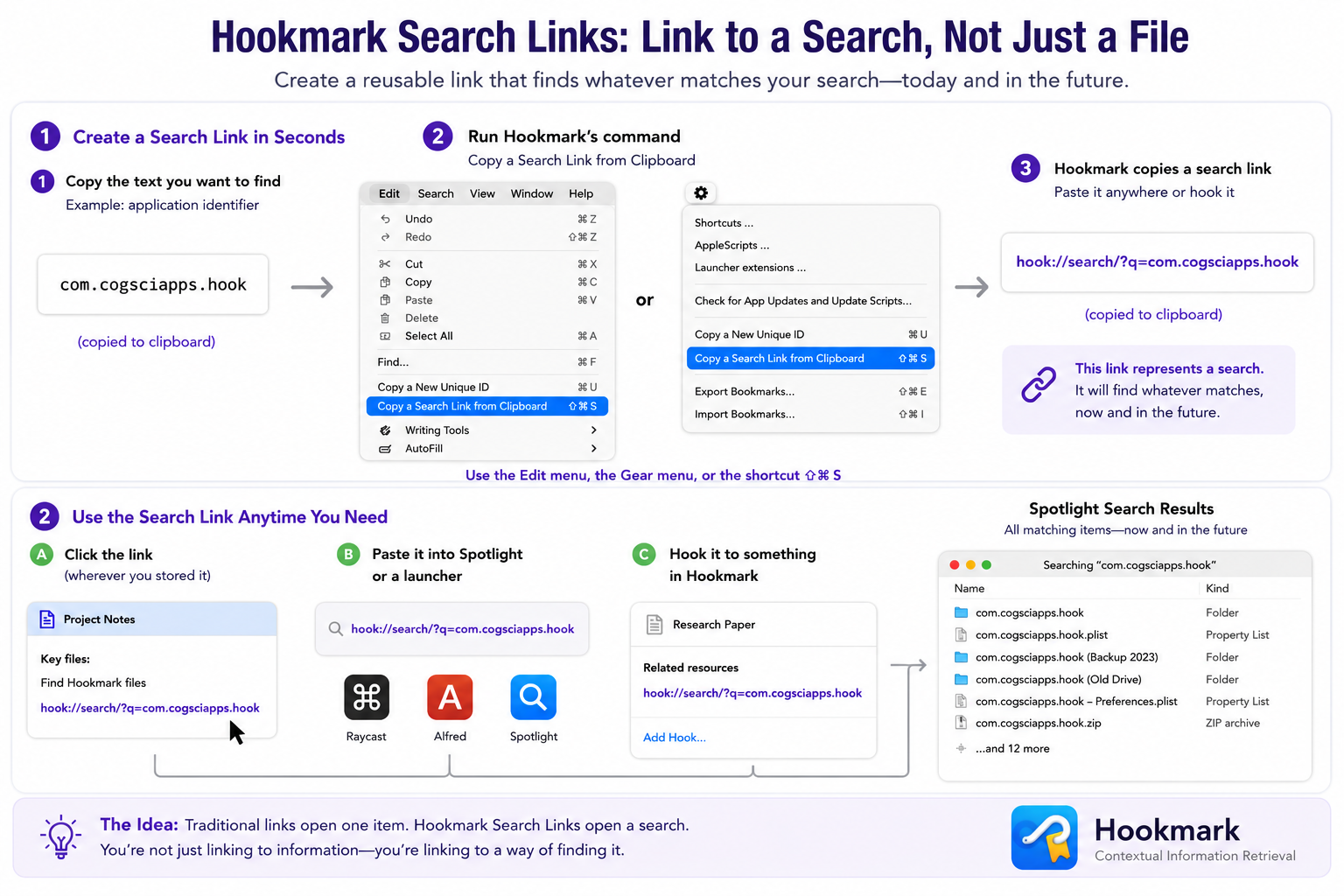
Find Anything Later with Hookmark Search Links
Most links point to something that already exists—a file, a note, a webpage, or an email. Hookmark can do something different.
It can create a link to a search. Instead of linking to one item, it links to whatever matches your search whenever you open it. That means you can create a reusable search once and never have to remember exactly where something lives again.
What is a Search Link?
Suppose you frequently need to find Hookmark’s application support folder. Rather than remembering the path, copy this text:
com.cogsciapps.hook
Now invoke Copy a Search Link from Clipboard.
You can access this command in three ways:
- the gear menu in Hookmark’s Context window (assuming you are using Hookmark in foreground mode)
- the Edit menu in the Bookmarks window
- the keyboard shortcut ⇧⌘S
Hookmark copies a link like this:
hook://search/?q=com.cogsciapps.hook
That tiny URL is much more powerful than it looks.
Using the Search Link
Whenever you later activate that link, Hookmark performs the search for you.
You can:
- click the link wherever you’ve stored it
- activate it from another Hookmark bookmark
- paste it into Spotlight or your favourite launcher ( LaunchBar, Alfred, Raycast)
Instead of opening one file, Hookmark opens the search results.
Why This Is Useful
Many things don’t have a single permanent location.
- Perhaps you’ve archived old project folders.
- Perhaps you’ve restored files from backup.
- Perhaps there are multiple copies of the same resource.
A normal file link points to one location. A Hookmark search link points to whatever currently matches your search.
For example, if you have several copies of files containing
com.cogsciapps.hook
across your Mac, the search link will find them all.
An Even More Powerful Workflow: Unique IDs
One of my favourite combinations is using Search Links together with Hookmark’s Copy a New Unique ID command. This command is located in the same menus as Copy a Search Link from Clipboard. The Edit menu and the Gear menu. Or use a keyboard shortcut: ⌘U.
- Generate a unique ID.
- Paste it into every file, note, or document that belongs to the same project.
- Then create a Search Link for that ID.
Now you have a permanent link that always finds every related item—even if those files move between folders.
This effectively gives you your own lightweight cross-reference system that works across applications.
Search Links Are Different from Ordinary Links
Traditional links answer:
“Open this item.”
Search Links answer:
“Find everything matching this idea.”
That’s a subtle but important distinction. It lets you link not just to information, but to ways of finding information.
In other words, you can save a search as a reusable object and connect it into your personal knowledge network alongside files, notes, emails, tasks, and web pages.
Another Example
Imagine you’re writing a paper about “bounded rationality.”
You could create a Search Link for that phrase and hook it to your manuscript.
Months later, one click instantly finds every PDF, note, email, and document on your Mac mentioning bounded rationality—including material you’ve added since creating the link.
The link gets more valuable over time because the search results evolve as your information grows.